首頁
» PC提示
»
How to Dual-Boot Ubuntu 24.04 and Windows 11 With BitLocker Enabled
How to Dual-Boot Ubuntu 24.04 and Windows 11 With BitLocker Enabled
Yes, Ubuntu 24.04 LTS and Windows 11 can coexist while Windows keeps BitLocker protection, but the safe installation method depends on your disk layout. If you have a second physical drive for Ubuntu, you can generally leave the Windows drive encrypted and install Ubuntu on that other drive. If both operating systems must share one drive, Canonical's documented guided installation path requires turning BitLocker off and allowing Windows to decrypt before the Ubuntu installer changes that drive's layout.
This distinction matters: suspending BitLocker is not the same as turning it off. A suspended drive is still encrypted, and treating it as decrypted can result in an unsafe or blocked installer. The instructions below follow the Ubuntu Desktop 24.04 LTS installer documentation and Microsoft guidance available as of October 9, 2026; exact firmware and installer labels vary among computers.
Can You Keep BitLocker Enabled Throughout the Installation?
On a separate physical disk, usually yes. Ubuntu's installation documentation explicitly offers a separate, unencrypted disk when BitLocker prevents installing alongside the Windows volume. Windows retains its BitLocker-encrypted C: drive; Ubuntu uses a different drive. Boot changes may still make Windows ask for its recovery key.
On a shared physical disk, do not assume so. Canonical says the guided Ubuntu installer cannot reliably inspect an encrypted Windows installation to install alongside it. For the documented shared-disk process, decrypt Windows completely, install Ubuntu, then decide whether your Windows edition and device can re-enable encryption. Re-encryption is not guaranteed on every configuration. See Canonical's
BitLocker during Ubuntu installation.
Situation
Recommended installation path
BitLocker implication
Two physical internal drives; a suitable second drive is available
Install Ubuntu only on the second drive; confirm the disk model and capacity before approving changes
Windows C: can remain encrypted
One internal drive, Windows and Ubuntu must share it
Back up, decrypt Windows, create space, use the 24.04 guided alongside option when offered
BitLocker is temporarily off; check whether it can be re-enabled afterward
Work-managed machine or encryption must never be turned off
Get IT authorization and a separate approved disk, or use a virtual machine/WSL instead
Do not bypass corporate encryption policies
What Should You Check Before Changing the Disk?
1. Find the Recovery Key and Confirm Encryption Status
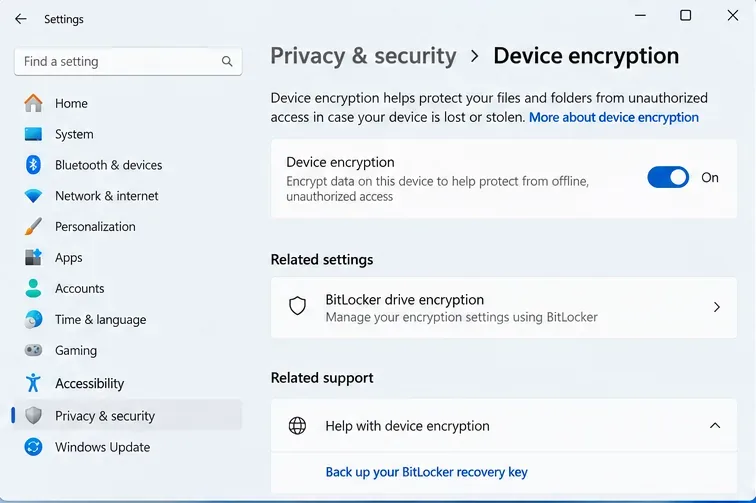
In Windows 11, open Settings > Privacy & security > Device encryption if that item exists. Windows Home can use Device Encryption on supported hardware, while BitLocker Drive Encryption management is offered on Pro, Enterprise, and Education. Search for Manage BitLocker if the classic control panel is available. Note which volumes are encrypted.
Back up the 48-digit recovery key where it will be accessible without booting this PC. For many personal devices, Microsoft provides recovery-key access through the Microsoft account linked to the computer; workplace or school devices may store keys with the organization. Match the recovery key ID shown on a recovery screen with the saved key record. Follow Microsoft's
instructions for finding a BitLocker recovery key. Do not proceed if you cannot recover the key.
The Windows 11 Device encryption settings show encryption enabled and a link to recovery-key information. Confirm your own system status and save the real recovery key before changing boot settings.
2. Back Up Files and Identify the Physical Drives
Copy important Windows files to independent storage and verify you can open them. A recovery key unlocks an encrypted volume; it does not replace a backup of your files. Keep recovery media for Windows and a working charger available.
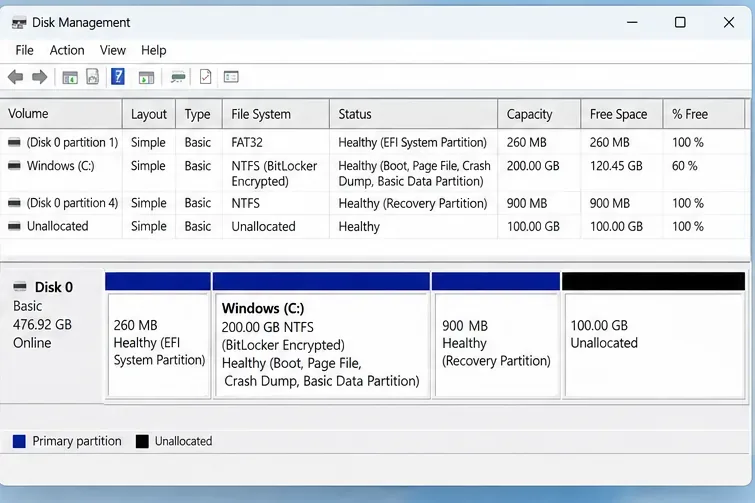
Open Disk Management (press Windows + R, enter diskmgmt.msc). Record the Windows disk number, capacity, EFI System Partition, C: volume, and recovery partition. If you have two physical drives, identify the second by its capacity and model. Disk numbers and Linux names such as /dev/nvme0n1 can change; verify the actual device during installation.
For the shared-disk method, aim for at least the Ubuntu installer minimum of 25 GB of storage; allocating roughly 50–80 GB or more is a practical planning suggestion for applications and personal files, not a Canonical requirement. Keep ample free space on Windows for updates.
Disk Management distinguishes the Windows operating-system volume, EFI and recovery partitions, and unallocated space. Identify the correct physical disk rather than relying only on its drive letter.
3. Is Your Computer Using UEFI and Secure Boot?
In Windows, run msinfo32 and check BIOS Mode. Modern Windows 11 installations normally use UEFI with a GUID Partition Table (GPT). Boot the Ubuntu USB in UEFI mode as well; mixing UEFI and legacy boot modes complicates dual booting.
Windows 快速啟動也使用了一種休眠機制,詳情請參閱微軟的
系統電源狀態文件。為了可靠地存取共享的 Windows 檔案系統,請避免掛載處於休眠狀態的 Windows 卷,以免從 Ubuntu 寫入資料。正常的 Windows 重新啟動比快速啟動的關機方式更徹底,因此在跨作業系統工作時,最好明確地完全關機。
如何在單硬碟上準備 Windows 分割區?
4. 關閉 BitLocker 並等待完全解密
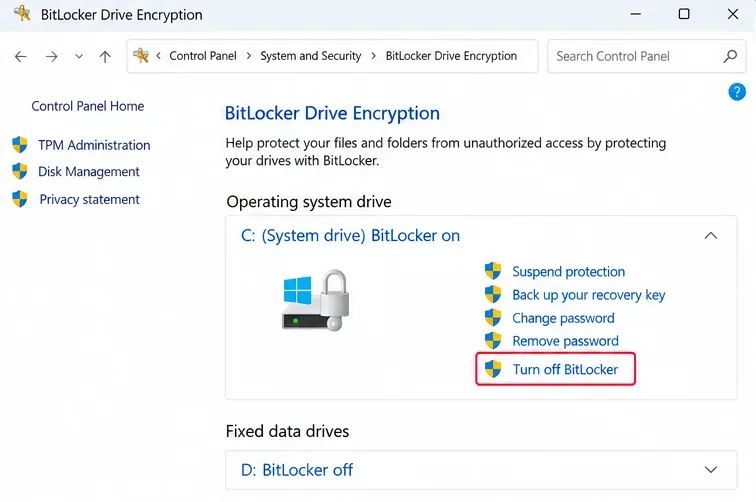
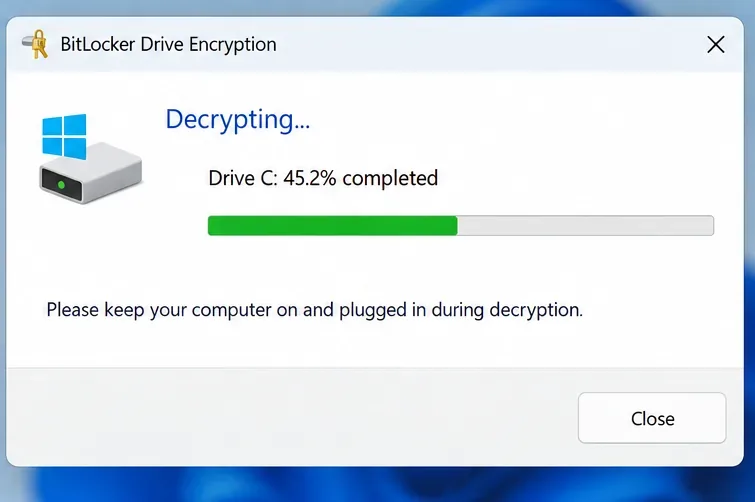
僅對共用磁碟路徑執行此步驟。在 Windows 系統中,選擇“關閉作業系統磁碟區的 BitLocker”,或者如果“裝置加密”選項可用,則將其關閉。確認解密要求,並在解密過程中保持電腦開機。請勿僅選擇「暫停保護」:微軟指出,暫停保護會將資料保持加密狀態並儲存一個臨時明文金鑰,這不符合 Canonical 文件中規定的前提條件。
請勿中斷安裝程式的啟動過程。如果您看到BitLocker 等待啟動條件,請按照 Canonical 的特殊說明進行操作,而不是假設磁碟未加密;即使磁碟未加密,也可能會阻止 Ubuntu 安裝程式的運作。此外,請提前檢查您的 Windows 版本是否允許您重新啟用加密。 Canonical 特別提醒,某些 Windows 版本可能不允許。請參閱
Ubuntu 24.04 中關於關閉 BitLocker 的步驟以及 Microsoft 對磁碟暫停和解密的比較說明。
將產生的區域保留為「未分配」。請勿在該區域建立 NTFS 磁碟區、刪除 EFI 系統分割區、移除 Windows 復原分割區或格式化 C 磁碟。如果 Windows 提供的壓縮空間不足,請停止操作並解決 Windows 磁碟空間限制,而不是強制 Linux 分割區編輯器移動受保護的 Windows 結構。 Microsoft 的
磁碟管理文件介紹了內建的壓縮功能。
如何在不覆蓋 Windows 的情況下安裝 Ubuntu 24.04?
6. 將 Ubuntu 安裝程式寫入 USB 隨身碟
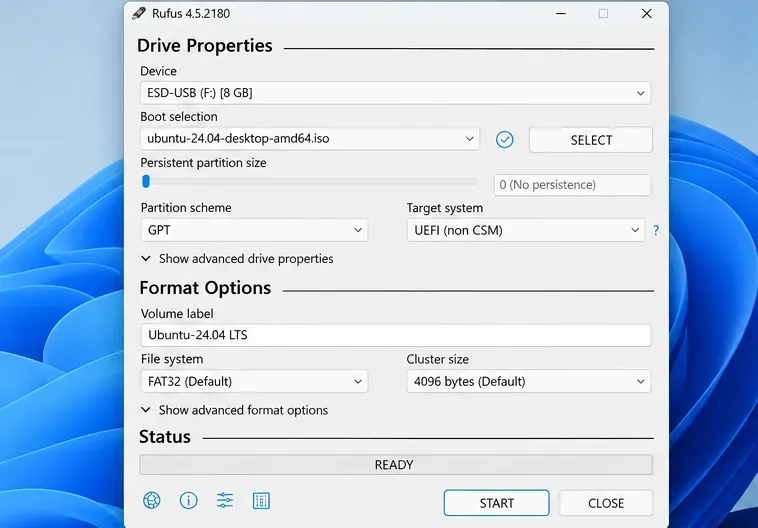
從 Canonical下載Ubuntu 24.04 LTS桌面版 ISO 鏡像,然後使用 Rufus 等專業的 USB 鏡像燒錄軟體建立啟動磁碟。 Canonical 建議使用8GB 或更大的U 碟。將 ISO 映像複製到普通 USB 資料夾是不夠的,建立啟動磁碟會清除 USB 隨身碟上的現有內容。
在標準的 Windows 11 UEFI/GPT 電腦上,Rufus 通常應使用 UEFI 相容設定。啟動前
請仔細檢查 USB裝置選擇。請參閱 Canonical 的Ubuntu 24.04 啟動 USB 隨身碟製作說明。
Rufus 顯示了 Ubuntu 桌面 ISO 映像、選取的 USB 隨身碟、GPT 分割區方案和 UEFI 目標系統。顯示的 U 盤是將被覆蓋的驅動器。
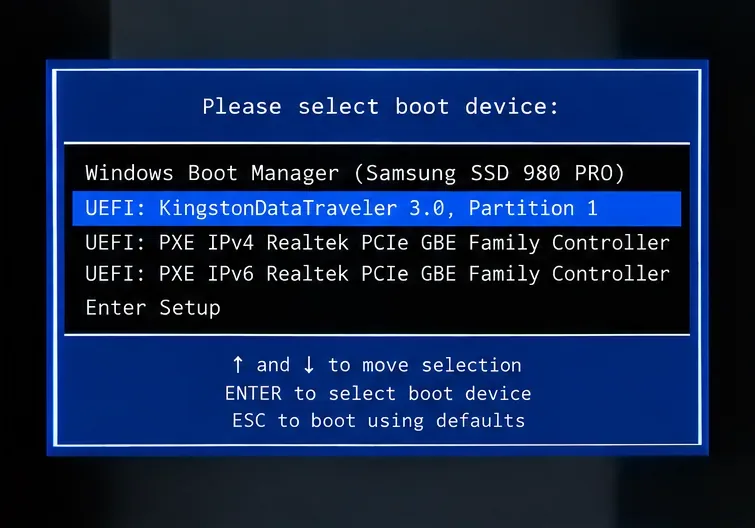
韌體啟動選擇器會高亮顯示 UEFI USB 設備,該設備獨立於 Windows 啟動管理器。請使用電腦製造商提供的實際啟動選單按鍵和裝置名稱。
8. 選擇目標磁碟並檢查每個分割區更改
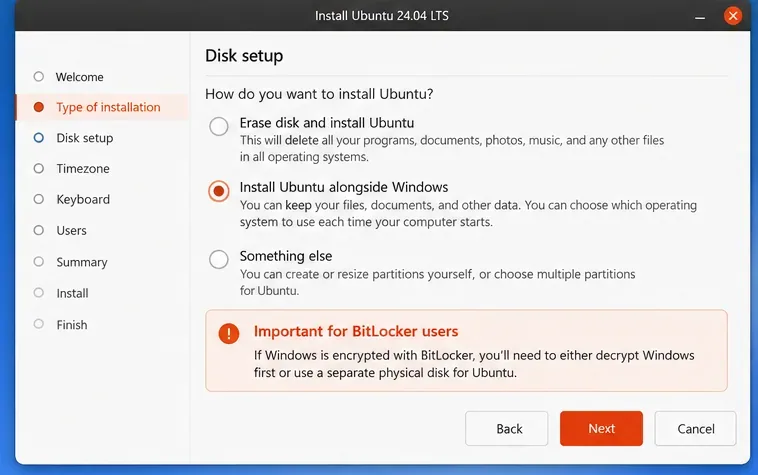
在 Ubuntu 桌面安裝程式中,選擇互動式安裝路徑並繼續磁碟設定。對於已完全解密的單一驅動器,當安裝程式識別到 Windows 並提供相應選項時,請使用「與 Windows並行安裝 Ubuntu」。查看建議的分區方案,並使用您預先分配的空間。如果偵測到的佈局不清楚,請取消並返回 Windows。
對於兩塊實體硬碟,請選擇第二塊硬碟。 Canonical 文件中提到,可以使用「擦除磁碟」選項將 Ubuntu 安裝到另一塊硬碟上,但這會徹底擦除所選硬碟上的所有資料。僅當第二塊硬碟上沒有任何您需要的數據,並且您已確認其型號和容量時才建議選擇此方法。如果需要保留該硬碟上的數據,則必須由專業使用者手動規劃分割區。切勿在 Windows 系統磁碟上選擇「擦除」選項。
手動分區適用於進階使用者。如有需要,請識別現有的 EFI 系統分割區和 Windows 復原分割區,避免格式化它們,並將 Linux 檔案系統僅指派給預期的可用空間或 Linux 磁碟。韌體佈局各不相同,因此請勿假定 EFI 分割區號碼或/dev/nvme...裝置名稱固定不變。 Canonical 的
Ubuntu 24.04 安裝程式指南解釋了開機選項以及手動磁碟設定的限制。
磁碟設定選項比較了與 Windows 並行安裝以及破壞性擦除選項。 Ubuntu 24.04 不同版本中的螢幕文字顯示略有不同;BitLocker 警告表示您必須重新評估磁碟或解密狀態,而不是忽略該警告。
9. 完成安裝並啟動兩個作業系統
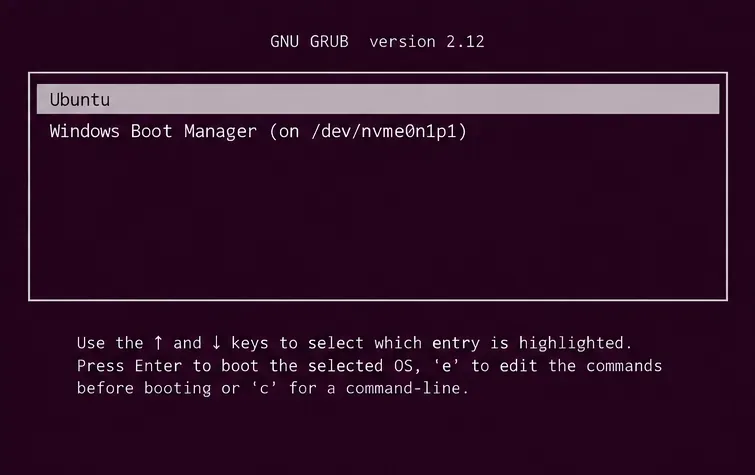
查看最終安裝摘要,確認 Windows 作業系統分割區和復原分割區未被標記為刪除或格式化。選擇 Ubuntu 使用者名稱和密碼,完成安裝,並在提示時移除 USB 裝置。根據韌體版本,GRUB 選單可能會列出Ubuntu和Windows 啟動管理器,或者您可能需要使用韌體的一次性啟動選單來選擇作業系統。
首先啟動 Ubuntu 並確認您的主目錄、網路連線和儲存裝置均正常運作。然後啟動 Windows。即使加密的 Windows 磁碟區從未被覆蓋,更改啟動路徑也可能導致 BitLocker 復原。如果出現提示,請輸入您儲存的 48 位元復原金鑰,以驗證 Windows 是否啟動,並將此金鑰儲存好,以備將來韌體或引導程式變更時使用。
GRUB 啟動功能表可以提供 Ubuntu 和 Windows 啟動管理器。有些 UEFI 系統則使用自己的啟動選擇器,顯示的選項取決於最終的安裝情況。
共用磁碟安裝後是否需要重新啟用 BitLocker?
僅當 Windows 提供支援的方法時才可執行此操作。返回 Windows,驗證其安裝情況,開啟適用於您版本的相應加密設置,並確認是否可以啟用 BitLocker 或裝置加密。如果可用,請啟動保護,等待加密完成,並儲存新的/目前的復原資訊。將 Ubuntu 與 Windows 加密資料卷分開,並在加密完成後再次測試 Windows 啟動。
不要想當然地認為,即使 BitLocker 在安裝 Ubuntu 之前運作正常,安裝後也會自動重新啟用。 Windows 版本、組織原則、硬體需求和帳戶配置都會影響其可用性。在 BitLocker 從未關閉的雙磁碟機路徑上,請檢查其狀態,而不是隨意切換。
對於以管理員權限開啟的 Windows 終端,會報告轉換百分比和保護狀態。受保護且完全加密的 C 碟應顯示加密完成且保護已開啟;如果結果不同,請在確認 Windows 資料已加密之前進行調查。 Microsoft 在其manage-bde 狀態參考manage-bde -status C:中描述了這些欄位
。
如果 Windows 啟動後進入 BitLocker 復原畫面怎麼辦?
使用 ID 與復原提示相符的已儲存金鑰。這種情況可能發生在更改 EFI 啟動路徑、安全啟動、韌體或 TPM 的啟動環境之後。但這本身並不能證明 Ubuntu 刪除了 Windows 檔案。 Windows 啟動後,請確認系統磁碟機的狀態,並在再次變更啟動設定之前,請調查任何重複出現的提示。
如果 Ubuntu 可以啟動,但 Windows 並未出現在 GRUB 開機功能表中,請檢查韌體的一次性啟動功能表中是否存在Windows 啟動管理器。 GRUB 條目缺失與 Windows 分割區缺失是不同的情況。在未確認設備佈局的情況下,請勿隨意執行啟動修復命令或重新建立 EFI 分割區。如果兩個作業系統都無法正常啟動,請使用恢復媒體和備份;優先恢復數據,而不是嘗試修復引導程式。
如果 Ubuntu 要求輸入磁碟解鎖密碼,這與 Windows 復原金鑰不同。 Ubuntu 的可選 LUKS 加密和實驗性的 TPM 加密都有各自的前提條件和復原機制。 Canonical 文件詳細介紹了
高級磁碟加密選項和TPM 加密的限制;不要想當然地認為加密的 Ubuntu 系統會自動包含在常規的 Windows 系統安裝中。